
YoSin TV Beginner Guide: Getting Started
A beginner guide to YoSin TV on Android, covering first launch, finding cricket and football updates, reading fixtures, and the settings worth checking first.

Blog
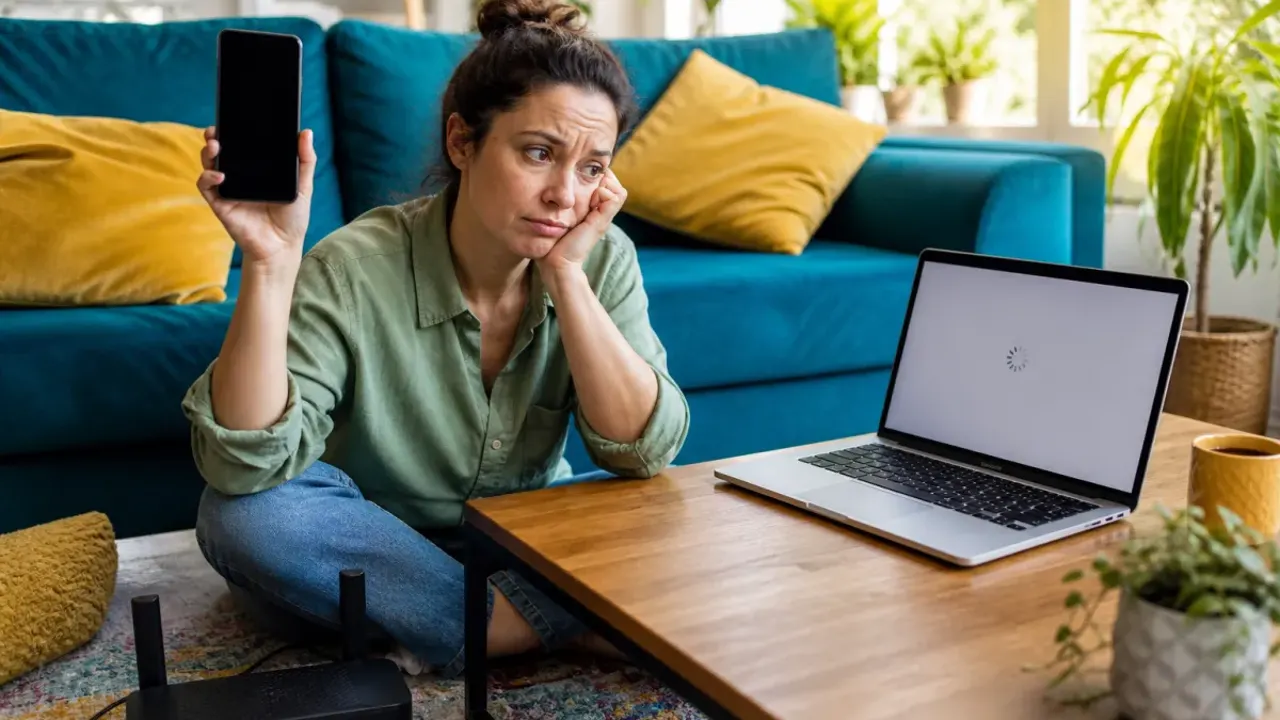
Why YoSin TV loads slowly or stalls, from weak connections and bloated cache to outdated versions, and the ordered fixes that restore normal speed.
A sports updates app lives or dies on speed. When fixtures take ages to appear or highlights stall before they start, the problem feels like the app failing at its one job, and sometimes it is, but more often the cause sits in the connection, the cache, or the phone around it.
This guide works through the causes in the order you should check them, cheapest first. It assumes the app opens and basically works; a completely dead app belongs to the not working fixes guide instead. Start from a clean baseline using the YoSin TV complete guide facts about your version.
Change one thing at a time and retest on the same content. Speed problems hide when five fixes land at once.
Open any other online app or a mobile browser page. If everything is slow, your connection is the story, and no app setting will outrun a weak signal. Move closer to the router, switch between Wi-Fi and mobile data, and retest before touching the app at all.
Sports venues and match day networks deserve special suspicion. A stadium area full of fans can slow every connection to a crawl at exactly the moment everyone wants updates, which is a capacity fact, not an app fault.
Key points:
Weeks of stories, images, and highlight data accumulate in the app cache, and a bloated or stale cache is the most common app side cause of sluggish loading. Android lets you clear it from app settings without touching your installation.
Clear cache, not storage data, then reopen the app and let it rebuild fresh. The first load after clearing can be slower while the cache refills; judge speed from the second session, as the beginner guide also advises for freshness problems.
Performance fixes ride inside updates, alongside content changes. A version from several releases ago may carry loading behaviour the developers already repaired, and no local fix compensates for that.
Check the version on the download page against the one in your app settings. Updating carefully, from the trusted source, is a speed fix as much as a feature one.
A phone with nearly full storage, dozens of background apps, and an old Android version makes every app feel slow, and content apps show it first because they constantly fetch and render new material.
Free a sensible block of storage, close the heaviest background apps during testing, and keep Android itself reasonably current for your device. The compatibility guide explains where older devices hit their limits.
If fixtures and stories load instantly but highlights stall, the bottleneck is bandwidth for video shaped content, not the app generally. That distinction matters, because the fix is connection quality and timing, not cache surgery.
Watch highlights on the strongest connection you have, ideally home Wi-Fi, and let text updates carry your mobile data sessions. Splitting content types by connection is the pragmatic end state for many users.
Fixture release moments and final whistles create demand spikes: thousands of fans refresh together and services breathe harder for a few minutes. A short slowdown at those exact moments is the internet being a stadium, not your setup failing.
Wait two minutes and retry before applying any fix. The discipline of not fixing what is already recovering saves more time than any setting in this guide.
A fresh update occasionally loads slowly for its first sessions while caches rebuild and content indexes settle. Judge an update on its third open, not its first, before reaching for any fix in this guide.
If slowness survives that settling window, treat it as a new problem with the usual order: connection, cache, then the possibility that the update itself has an issue your device exposes. Reporting it with your device model and Android version helps everyone behind you.
Bandwidth and signal quality. Video shaped content exposes the gap first, while text updates may still feel fine. The connection, not the app, is the limit.
Clearing cache removes temporary files the app rebuilds as needed. It does not remove the installation. Avoid clearing storage data unless a guide specifically tells you to.
Sometimes, as a last resort, because it forces a fully fresh state. Try connection checks, cache clearing, and updating first; reinstalling is the heaviest tool in the box.
Enough that Android never warns you. A nearly full phone slows every app, so keeping a comfortable margin is general medicine, not app specific advice.
Slow loading yields to an ordered search: connection, cache, version, phone, in that sequence, with one change per test. A YoSin TV that loads at the speed of your connection, rather than the speed of its oldest cache, is the whole goal of the checks above.
Most cases resolve by the cache step. The rest are usually an old phone or a crowded network asking for patience rather than repair.
Keep the habits in this guide small and repeatable, and the app will keep repaying them every match week.